
Pages List
List view
Getting Started
Getting Started
Product Data Management
Product Data Management
CAD Collaboration
CAD Collaboration
Workflows
Workflows
Pricing and Billing
Pricing and Billing
Help & Support
Help & Support
Video Guides
CAD Version History
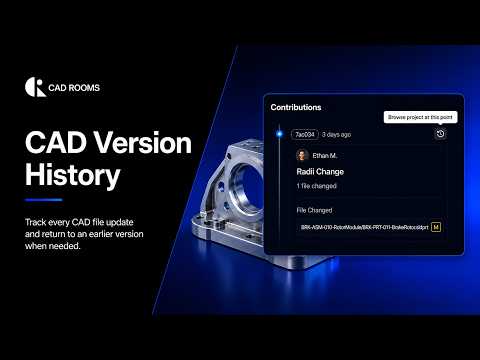
Move fast without losing track of your CAD work. CAD ROOMS automatically tracks file contributions, keeping each version—along with its author, message, and change log—accessible in one place. This video shows how to browse version history, inspect previous CAD versions in 3D, and download or restore earlier versions when needed.
Key Video Chapters
- 00:10 — Automatic Version Tracking for Every Contribution
- 00:19 — See Author, Message, and Change Log for Each Revision
- 00:24 — Open and Inspect Past Revisions in 3D
- 00:31 — Roll Back to Any Point in History
- 00:40 — Recover Past Revisions by Downloading and Restoring
How to Browse CAD Version History
- Open Version History. Find the CAD file in your workspace and access its version history to view previous file versions.
- Review the timeline. Browse recorded contributions and check details such as the author, timestamp, and change message.
- Inspect previous versions. Select an earlier version to open and review the CAD model in the 3D viewer.
- Review change details. Check the available version information and change log to understand how the file has evolved.
- Recover a previous version. When needed, download an earlier file version or use the available restore option to return to a previous state.
For more detailed instructions, see How to View Version History.